
Turn Gmail into a kanban board.
Sign in with Google and Kanmail shows your labels as columns. Drag and drop emails, sync multiple accounts.
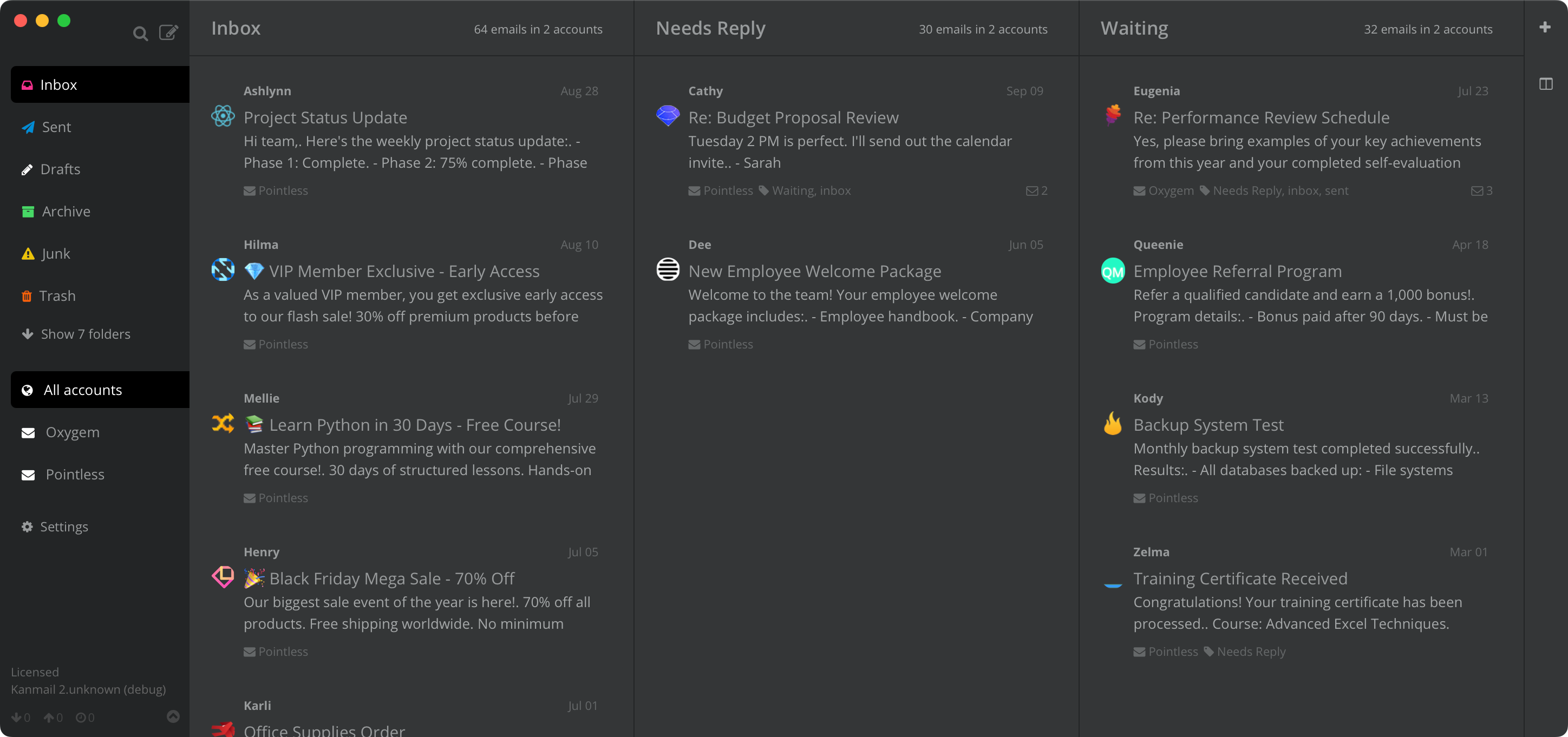
For people who
already know Gmail.
Kanmail is built and tested against Gmail. It takes your inbox beyond labels and stars: your emails on a kanban board, with work and personal accounts together in one view.
Your labels,
side by side.
Turn labels into columns you can pull messages into. Gmail lets a thread carry multiple labels, and Kanmail shows the same email in every column it belongs to. Remove it from one and the others are untouched.

The search operators you already type.
Search goes straight to Gmail: same syntax, same results. There are shortcuts for archiving, moving mail between labels and jumping between columns.

Three Gmails, one board.
Add your work account, your personal account and whatever else you've collected. Kanmail merges them into one board and tints each a different color, so you don't reply to a client from your gmail.com address by mistake.

In practice
A freelancer's board
Inbox → Needs Reply → Waiting
One Gmail per client plus a personal account on the same board. Anything a client is owed sits in Needs Reply, anything blocked on a client sits in Waiting, so nothing gets lost between accounts.

Your mail stays between you and Google.
One-click Google sign-in
Hit Sign in with Google and you're in, without touching IMAP settings or app passwords. Your password never reaches Kanmail: Google hands back an OAuth token for your mail and nothing else in your Google account, which you can revoke from your account at any time.
No server in the middle
Kanmail runs on your machine and talks directly to Google. Messages cache locally and stay there; we never see your mail because there's nothing of ours in between. Tracking pixels are blocked by default.
Try Kanmail with Gmail
$49. Once.
Free to try for as long as you like. Pay once and it's yours.
macOS, Windows & Linux
Also: Kanban for Outlook · iCloud · Fastmail · Yahoo · Proton Mail