
Turn Outlook into a kanban board.
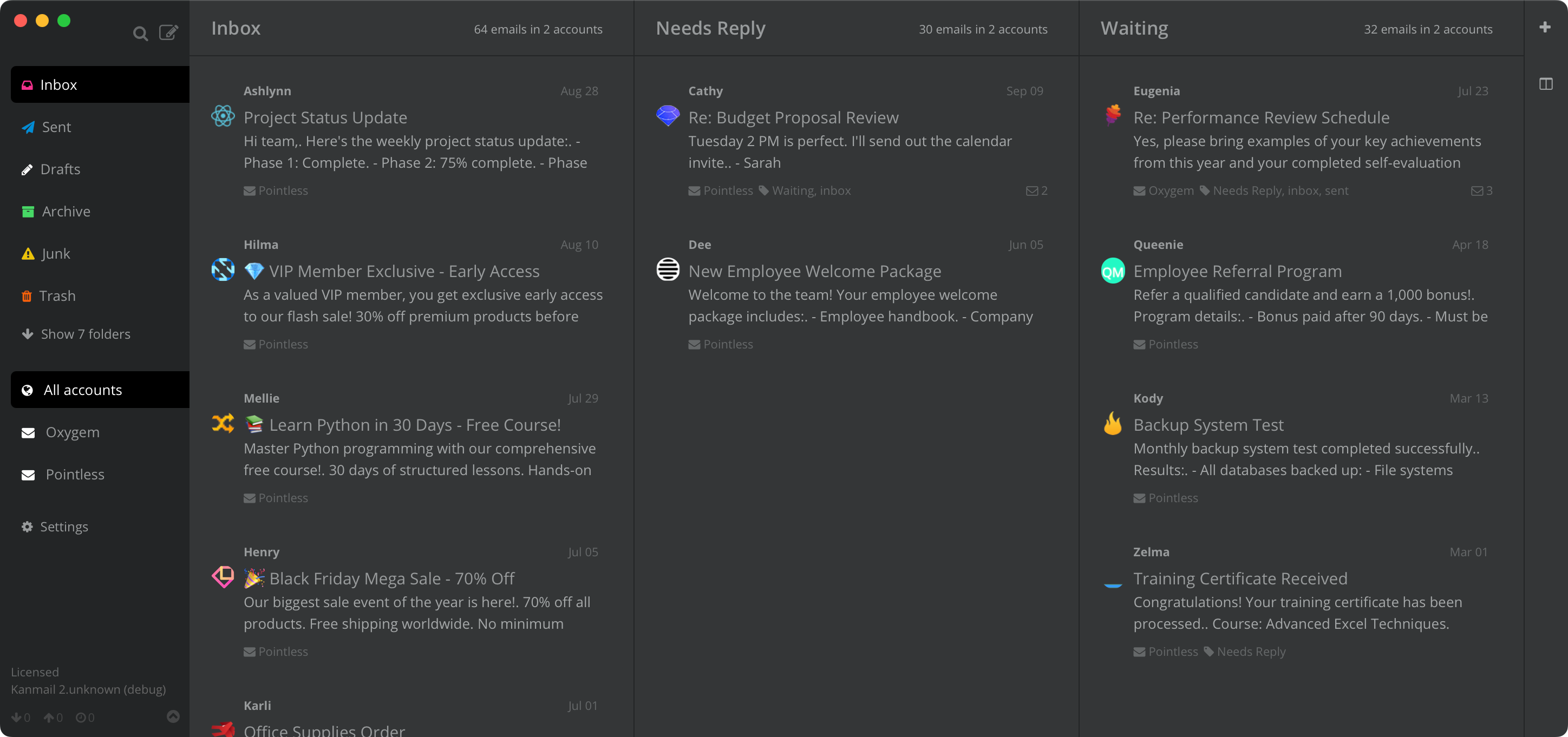
Kanmail signs you in with Microsoft and lays every folder out as a column. Drag and drop emails, sync multiple accounts.
Outlook, without the
seven-level folder dive.
The folder tree was fine when you had twelve folders; years later it's out of control. Kanmail pulls the folders you actually use onto one screen, side by side, so triage stops being an exercise in expand-and-collapse.
Folders as
columns.
Pick the folders that matter (Inbox, Pipeline, Awaiting Reply, Done) and they sit on screen as columns. Moving a message moves it server-side too, so everything looks right on your phone and in Outlook itself.

A board for
every job.
Save one board for the sales pipeline, another for the support queue, another per project. Each remembers exactly which folders in which order, and switching is one click.

Every M365 tenant,
one workspace.
Outlook on the web makes you switch tenants one at a time. Kanmail shows every Microsoft 365 account together, each with its own color accent, so a client's mail is one glance away from your own.

In practice
A follow-up board
Inbox → Needs Reply → Waiting
Conversations move right as they progress: prospects you owe a reply, deals you're waiting on. The state of the pipeline is just what's on the board, not something to reconstruct from Sent Items.

Your mail stays between you and Microsoft.
One-click Microsoft sign-in
Click Sign in with Microsoft and you're in, without app passwords or an IMAP host to look up. Your Microsoft password never reaches the app: OAuth hands Kanmail a token for reading and sending your mail, and nothing else in your Microsoft account. Works with Microsoft 365, Outlook.com, Hotmail and Exchange Online.
No backend in the middle
Kanmail connects straight from your machine to Microsoft's servers; your mail is never copied to our cloud. Messages cache locally so search and offline reading are instant, and tracking pixels are blocked by default.
Try Kanmail with Outlook
$49. Once.
Free to try for as long as you like. Pay once and it's yours.
macOS, Windows & Linux
Also: Kanban for Gmail · iCloud · Fastmail · Yahoo · Proton Mail